Google Calendar
Screenshots
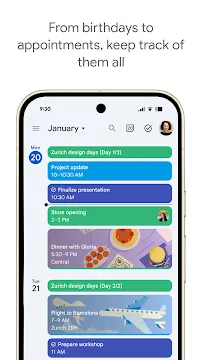
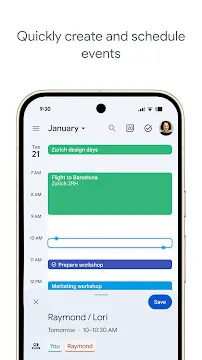
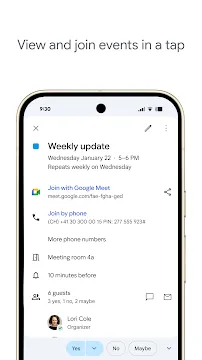
Google Calendar for Android is a tool that helps you manage your time. This app syncs your schedule across your phone, tablet, and computer. It allows you to track meetings, birthdays, and daily chores in one place. Most Android phones come with this app already installed. If you do not have it, you can download it from the Google Play Store.
Organize Your Daily Events
You can create events in just a few seconds. Open Google Calendar and tap the plus icon in the bottom corner. Enter the title of your event and choose the date. You can also set a specific time for the meeting or task. The app allows you to add locations so you can find them on a map later.
- Add a title to your event.
- Pick a start and end time.
- Include a location for easy navigation.
- Set a description for extra details.
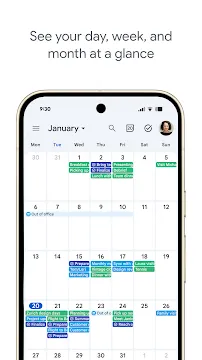
Transitioning from one event to another becomes easier when your schedule is clear. You can see your day at a glance. This helps you avoid double-booking yourself.
Manage Tasks and Reminders
Google Calendar does more than just track meetings. You can create tasks to manage your to-do list. When you make a task, it appears directly on your calendar grid. You can mark these tasks as finished once you complete them. This feature helps you stay productive throughout the day.
- Tap the plus button and select “Task.”
- Write down what you need to do.
- Choose a deadline for the task.
- Check it off when you finish.
Using tasks ensures you do not forget small errands. Since they sit next to your appointments, you can see exactly when you have free time to finish them.
Customize Your Calendar View
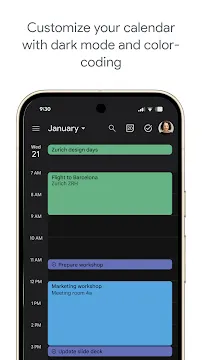
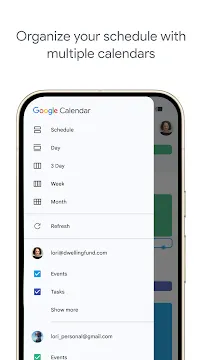
Everyone views their time differently. You can change how the Google Calendar looks to suit your needs. The menu button in the top left corner offers several options. You can choose a single-day view, a three-day view, or a full month view.
- Schedule View: See a list of upcoming items.
- Day View: Focus on every hour of the current day.
- Month View: Look at your entire month at once.
After you pick a view, Google Calendar remembers your choice. You can switch back and forth whenever you want. This flexibility helps you plan for the short term and the long term.
Google Calendar: Sync Information from Gmail
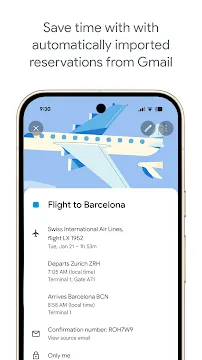
One of the best features is the automatic sync with your email. If you receive a flight confirmation or a hotel booking in Gmail, Google Calendar adds it to your schedule. You do not have to type the details manually. This saves time and prevents errors.
- Flights appear with departure times.
- Restaurant reservations show up automatically.
- Concert tickets link to your calendar.
Furthermore, these events update if you get a new email about a change. If your flight is delayed, the calendar reflects the new time. This keeps your travel plans organized without any extra effort.
Share Calendars with Others
Family and team members need your schedule. You can share your entire calendar. Or share only specific events. Go to settings and find “Add person.” Type their email address. Choose their permission level.
They can see only free or busy times. Or they can see full event details. They can also modify events if you allow it. This works great for project managers. It also helps parents coordinate kids’ activities.
For instance, create a shared calendar named “Family.” Add school events and doctor visits. Your partner adds their work trips. Everyone stays informed. Google Calendar updates in real time. No more texting “Are you free on Tuesday?”
Use Widgets for Quick Access
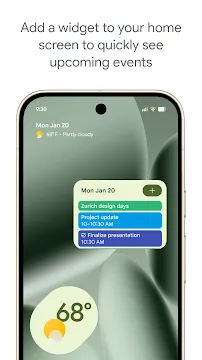
You do not always need to open Google Calendar to see your plans. Android allows you to place widgets on your home screen. These widgets show your upcoming events or a mini monthly view. You can see what is next just by looking at your phone.
- Press and hold on your home screen.
- Select “Widgets” from the menu.
- Find the Calendar widget.
- Drag it to your screen.
This feature provides instant access to your schedule. You can quickly glance at your phone between meetings to see your next location.
Final Thoughts
Google Calendar for Android is a reliable tool for anyone who wants to stay organized. It combines events, tasks, and reminders into a simple interface. Because it syncs with Gmail and other Google services, it manages much of the work for you. You can customize the views and share your time with others to stay productive. Whether you are a student or a professional, this app helps you stay on track every day.